Dify Third-Party API Quick Start: Configure an OpenAI-Compatible Model Provider
Install the OpenAI-API-compatible provider in Dify, enter a third-party Base URL, API Key, and model name, then verify app and workflow calls.
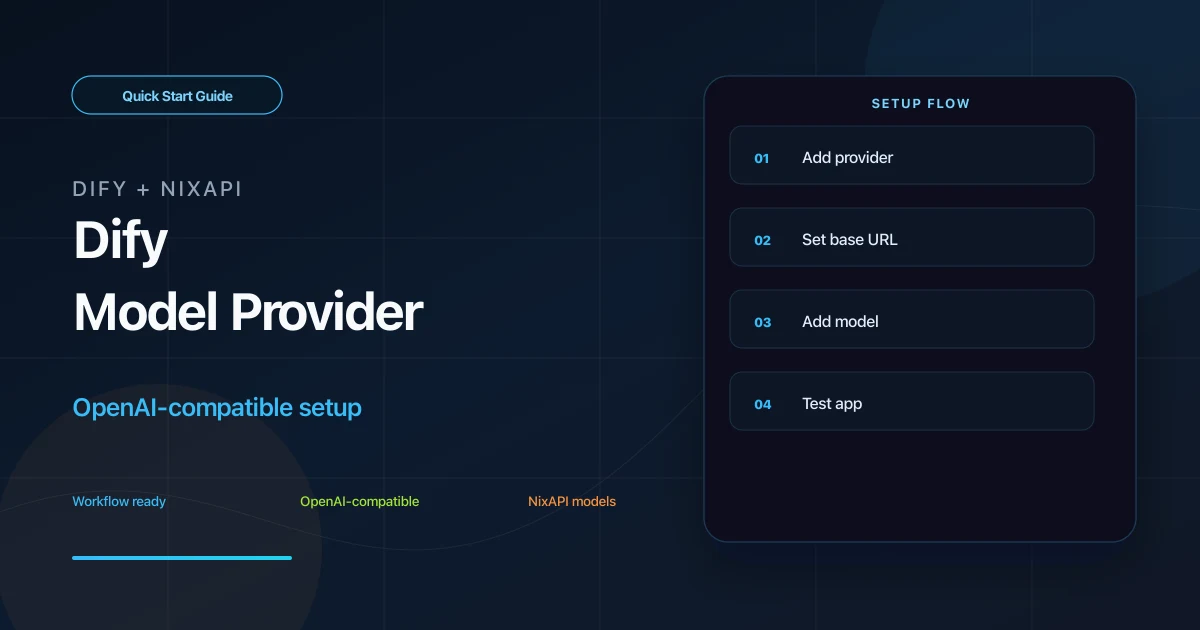
Dify supports third-party model services through OpenAI-compatible providers. Because NixAPI exposes a unified OpenAI-compatible API, you can add it to Dify and use it in chat apps, agent apps, and workflow nodes.
This guide follows the shortest path: create a key, add the provider, enter the Base URL and model name, then test a Dify app.
Prerequisites
You need:
- Access to a Dify console
- A NixAPI API Key
- A Dify app or workflow for testing
If you do not have a key, create one in the NixAPI console. Model list and prices are available on the NixAPI pricing page.
Step 1: Confirm the Base URL
For Dify’s OpenAI-compatible provider, use:
https://nixapi.com/v1
Dify will use this Base URL to call APIs such as chat/completions and embeddings.
Do not enter https://api.openai.com/v1, or requests will go to the official endpoint. Do not omit /v1.
Step 2: Install the OpenAI-Compatible Provider
In the Dify dashboard, open:
Settings → Model Providers
Find OpenAI-API-compatible or a similarly named provider plugin. If Dify asks you to install or update it, choose the latest version.
After installation, click Add Model.
Step 3: Fill in the Model Configuration
Use:
| Field | Example | Notes |
|---|---|---|
| API Key | nix-your-api-key | Copy from the NixAPI console |
| Base URL | https://nixapi.com/v1 | OpenAI-compatible endpoint |
| Model name | claude-sonnet-4-20250514 | The model Dify should use |
Suggested models:
claude-sonnet-4-20250514gpt-5.4gemini-3-pro-previewdeepseek-v4minimax-m3
The model name must match a supported NixAPI ID. Copy it from the NixAPI supported models page.
Dify will usually run a connectivity check after saving. If it fails, check the key, Base URL, and model name first.
Step 4: Test in an App
Open an existing chat app or create a test app. Select the NixAPI model you just added.
Enter:
Rewrite this sentence in a more formal tone: Today we should finish API integration first.
If Dify returns a normal answer, the provider setup works.
In logs, you may see a request like:
POST https://nixapi.com/v1/chat/completions
Authorization: Bearer nix-your-api-key
That confirms Dify is calling NixAPI.
Step 5: Use It in Workflow
In Dify Workflow, choose the configured NixAPI model in an LLM node.
Common patterns:
- User question → knowledge retrieval → NixAPI model summary
- Form input → NixAPI model structured JSON output
- HTTP request node → NixAPI model report generation
If your workflow calls models repeatedly or processes long text, check the NixAPI model pricing page. NixAPI currently has a limited-time top-up exchange rate: RMB 0.80 = USD 1.00.
Optional: Configure Embeddings
If your Dify app uses knowledge-base retrieval, you can add an embeddings model through the same OpenAI-compatible provider.
Use:
| Field | Example |
|---|---|
| API Key | nix-your-api-key |
| Base URL | https://nixapi.com/v1 |
| Model name | Use a supported embeddings model from NixAPI |
Then select that embeddings model in the knowledge-base settings.
Troubleshooting
401 Unauthorized
The API Key is wrong or was not saved correctly. Copy it again from the NixAPI console.
Timeout
Check that the Base URL is:
https://nixapi.com/v1
If Dify runs on a server, make sure the server can access that URL.
JSON parsing error
This is often caused by prompt or response-format settings. First test a normal chat app, then enable JSON mode, structured output, or function calling step by step.
Model name error
Copy the exact model ID from the NixAPI supported models page.
Summary
Dify third-party API setup requires the OpenAI-API-compatible provider, https://nixapi.com/v1, a valid API Key, and an exact model ID. Once configured, chat apps, agent apps, and workflows can reuse the same model provider.
Try NixAPI Now
Reliable LLM API relay for OpenAI, Claude, Gemini, DeepSeek, Qwen, and Grok with ¥1 = $1 top-up
Sign Up Free